
Requisitions from on board, straight to your purchasing team.
ShipApp runs on one PC on the vessel. The crew use it from any browser on the ship's network, on a PC, tablet or phone, to raise and approve requisitions, follow RFQs and orders, message the office and record deliveries. It works offline and syncs in kilobytes.
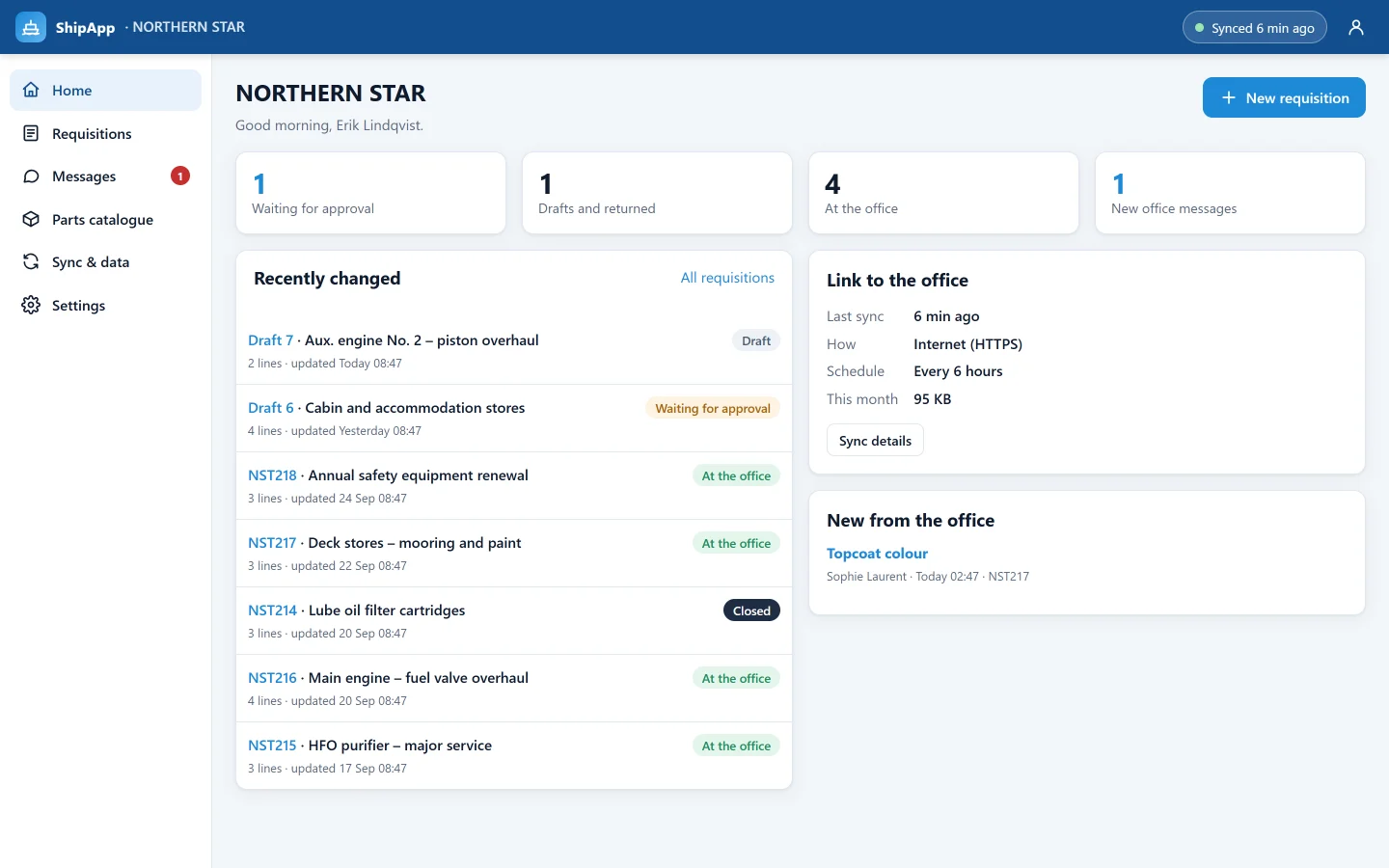
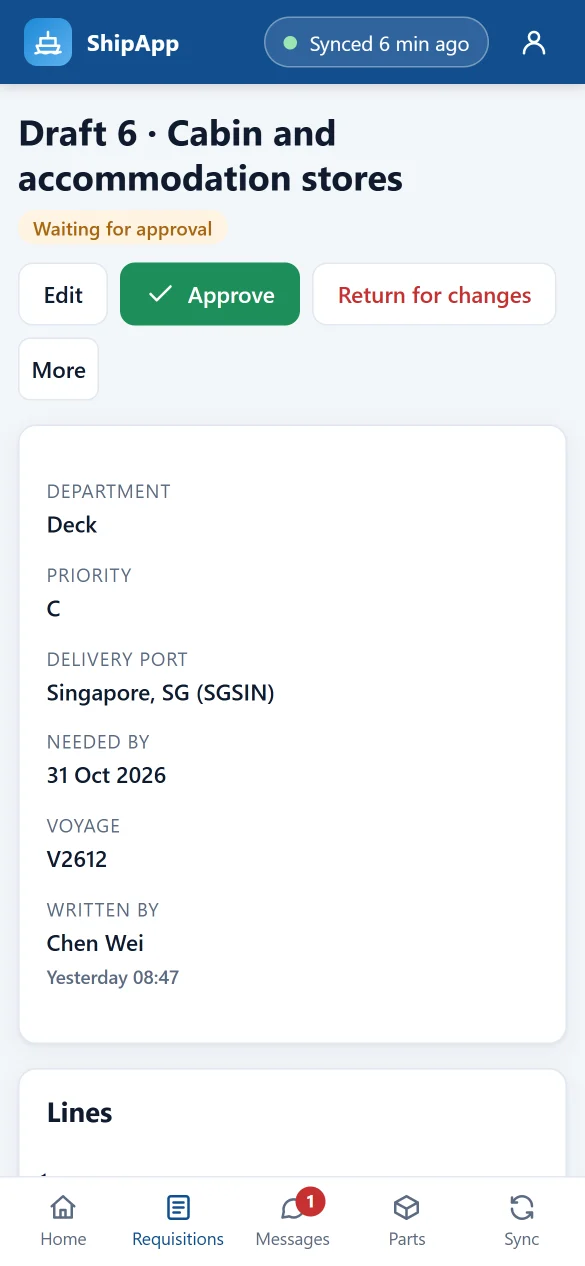
Everything the crew needs to order, on any device on board.
Requisitions in minutes
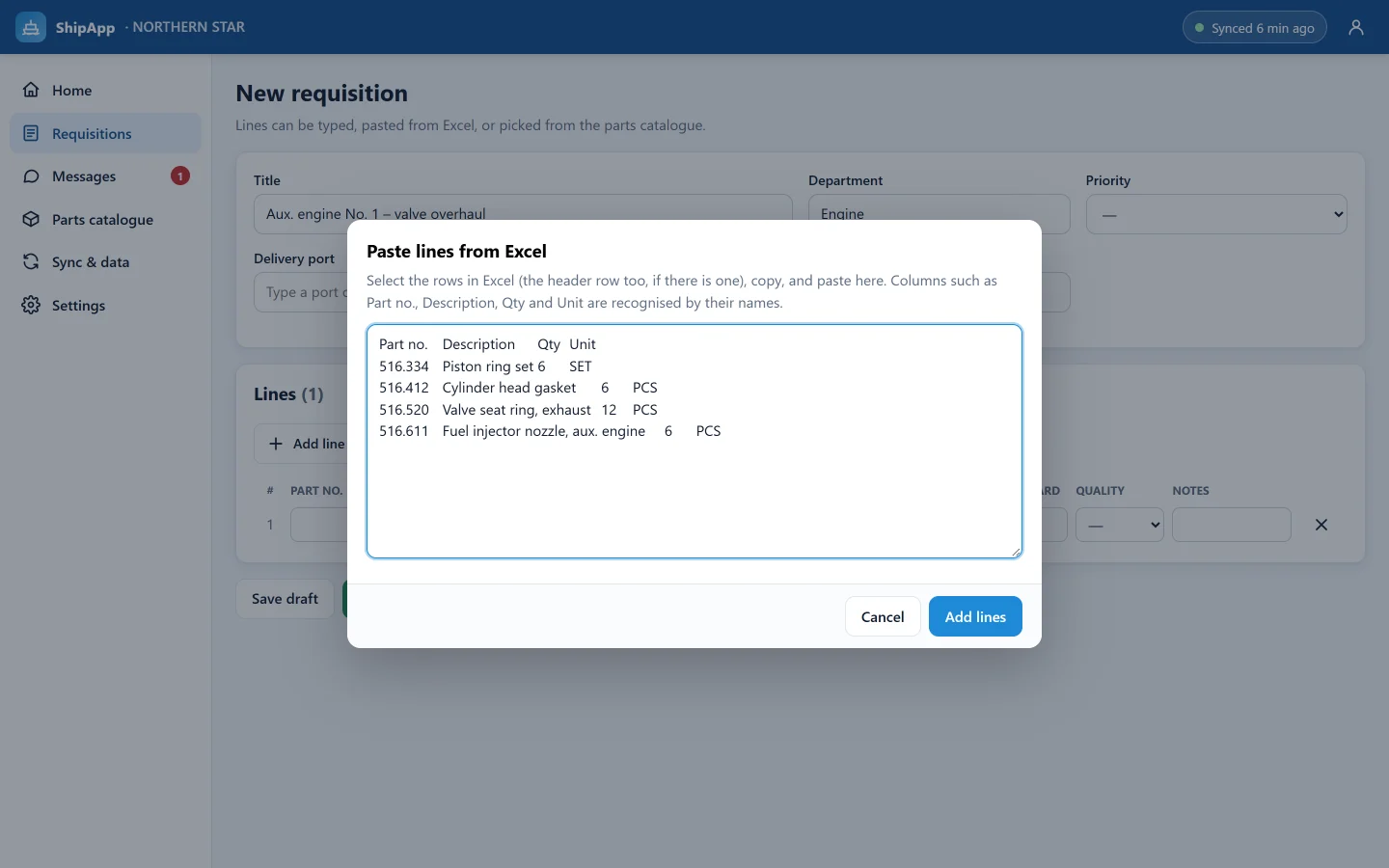
Type the lines, paste them from Excel (part no., description, quantity and unit are recognised by their column names) or pick them from the ship's parts catalogue.
Approval on board
The crew write drafts; the Master or Chief Engineer approves them or returns them for changes, from the PC or a phone. Approved requisitions go to the office with the next sync.
Line-by-line progress
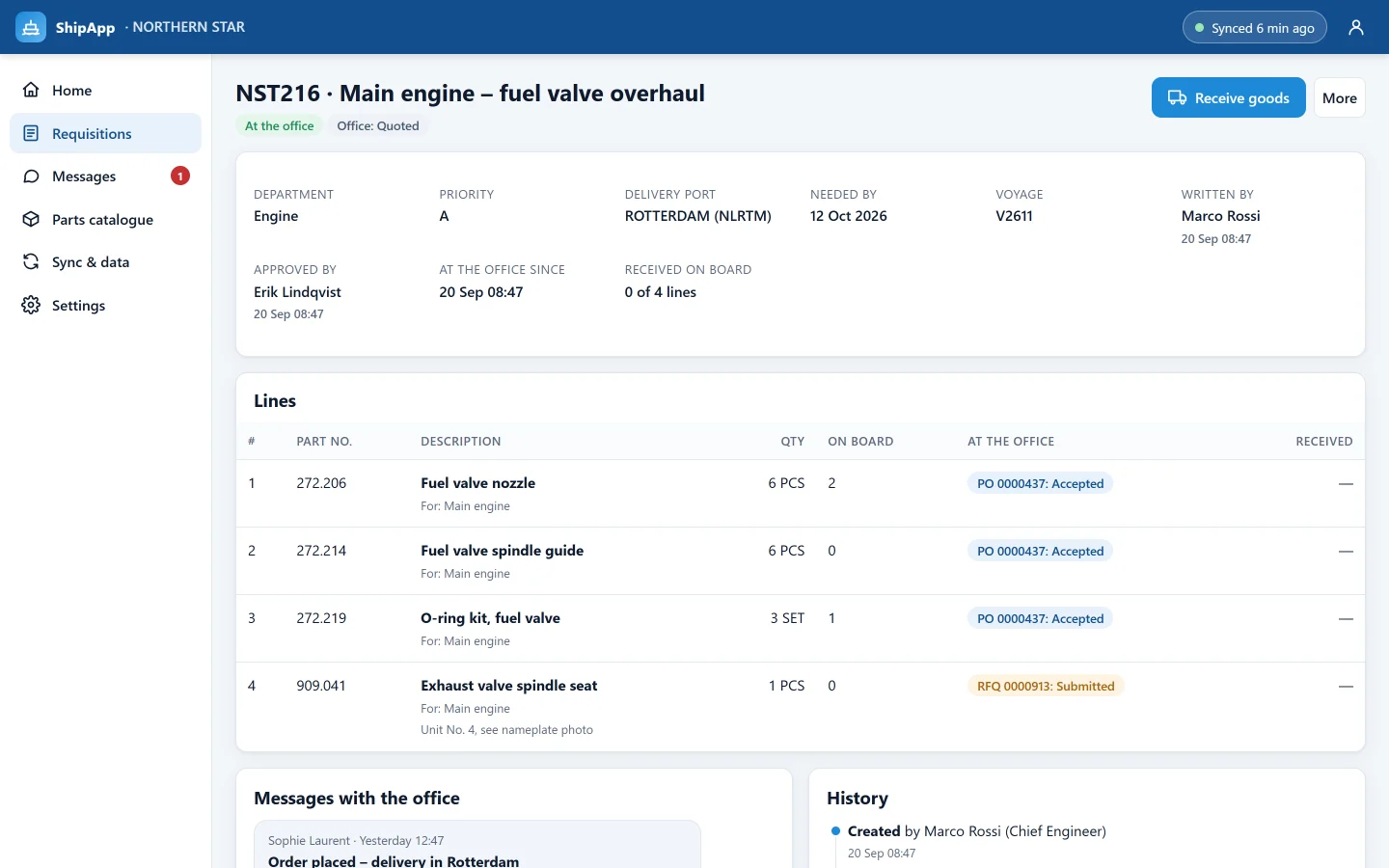
Every line shows where it stands at the office: on an RFQ, quoted, or on a purchase order accepted by the supplier.
Messages and files with the office
Questions, nameplate photos and documents travel with the requisition they concern. Photos are shrunk on the device before they are sent.
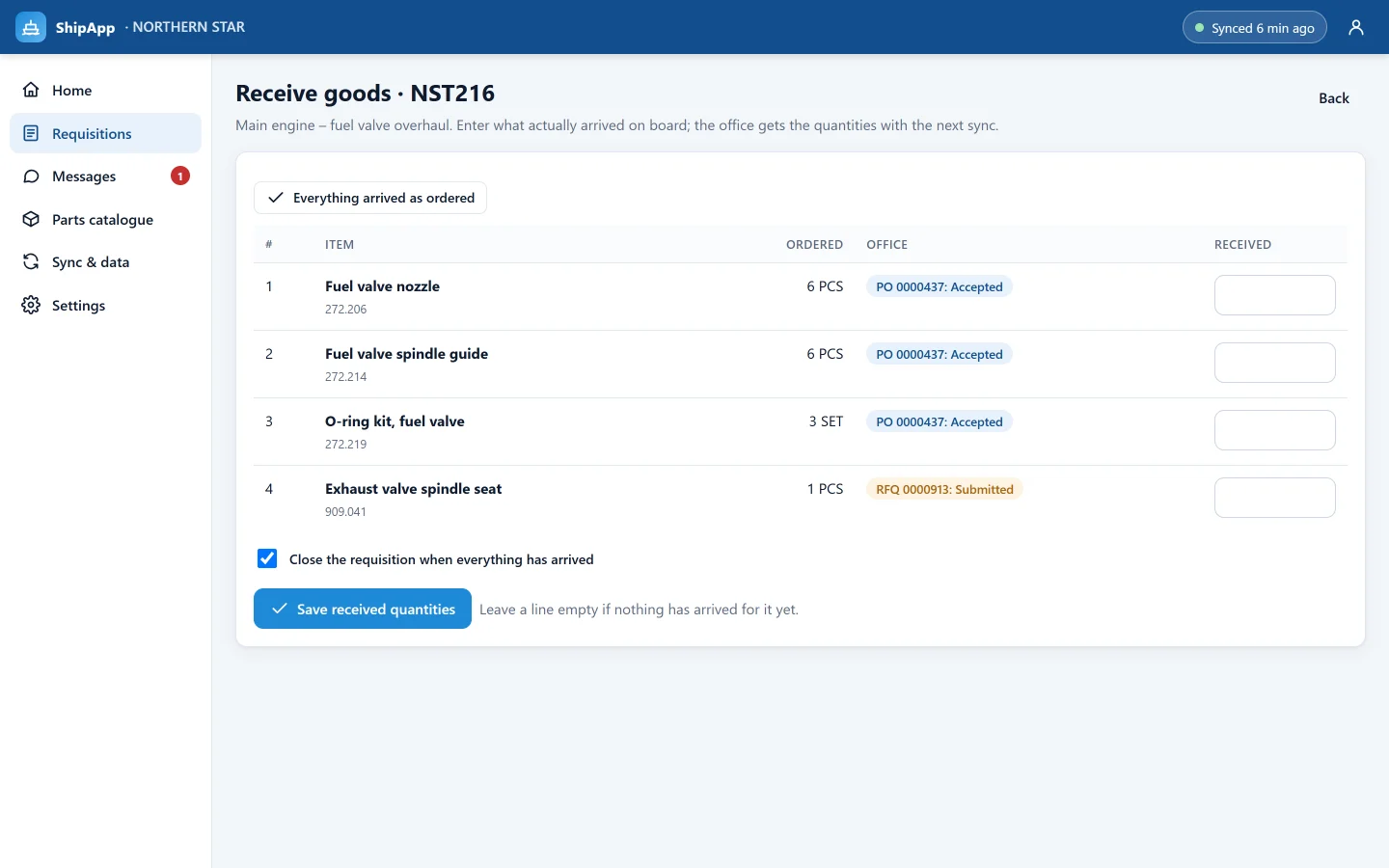
Receive goods
Record what actually arrived on board. The office gets the delivered quantities with the next sync, and the requisition can close itself when everything is in.
Works offline
Everything is kept on the ship's PC, with a daily backup. Tablets and phones hold no data, and the crew keep working when the link is down.
Built for the way requisitions are made at sea.
Sends only what changed. Compressed, signed and resumable.
ShipApp checks the office every six hours, and shortly after something is approved, received or written. A monthly data budget can pause automatic checks, and every exchange is listed with its exact size.
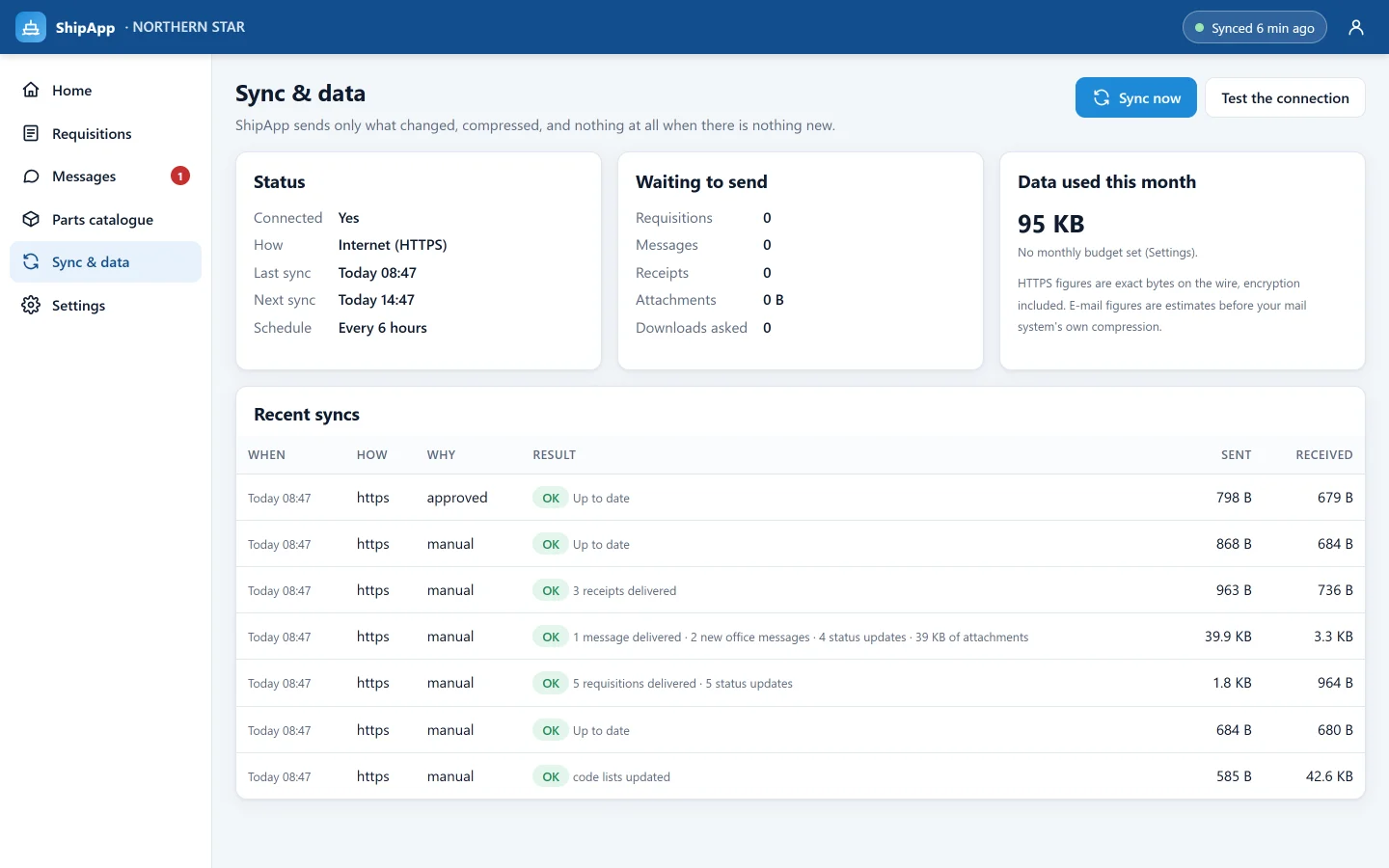
Each way. HTTPS adds a few KB per connection.
Sent to the office once it is approved.
Ports, units and part types, on the first sync after connecting.
Whatever link the ship has.
Internet (HTTPS)
VSAT, Starlink or 4G in port. The default: ShipApp syncs on its own schedule and after every approval or receipt.
When the ship only has an e-mail service, ShipApp exchanges small signed files through the ship's mailbox.
File
No link at all: create a sync file, send it by any means (USB stick or e-mail client) and import the reply.
One PC on board, connected once.
- 1Ship PC
Install
On a PC that stays on: Windows 10, Windows 11 or Windows Server 2016 or later, about 150 MB. Nothing else to install.
- 2Once
Connect the ship
Sign in once with an office SeaProc account and pick the vessel. The password is used for this step only and is not stored.
- 3On board
Crew sign in
From any browser on the ship's Wi-Fi, or installed on tablets and phones like an app. Roles: crew, approver, administrator.
- 4At the office
Requisitions arrive in SeaProc
In the buyer portal, like any other requisition. Office messages and order status go back to the ship with the next sync.
See ShipApp on a PC, a tablet and a phone.
A short walkthrough with a procurement specialist, from the first requisition to the delivery.